
FAQ
When David Ayton, the original author of CDisplay, died in 2003, I decided to continue his work. Since the source code was lost, I totally rewrote the program.
The Desktop version is no longer under development, there is no need to submit enhancement requests. It must be completely rewritten in order to evolve.
Sometimes the application no longer appears, this bug can happen in case of registry corruption. The problem persists after reinstalling the app. In this case it is necessary to delete the configuration in the registry:
HKEY_CURRENT_USER\SOFTWARE\CDisplay
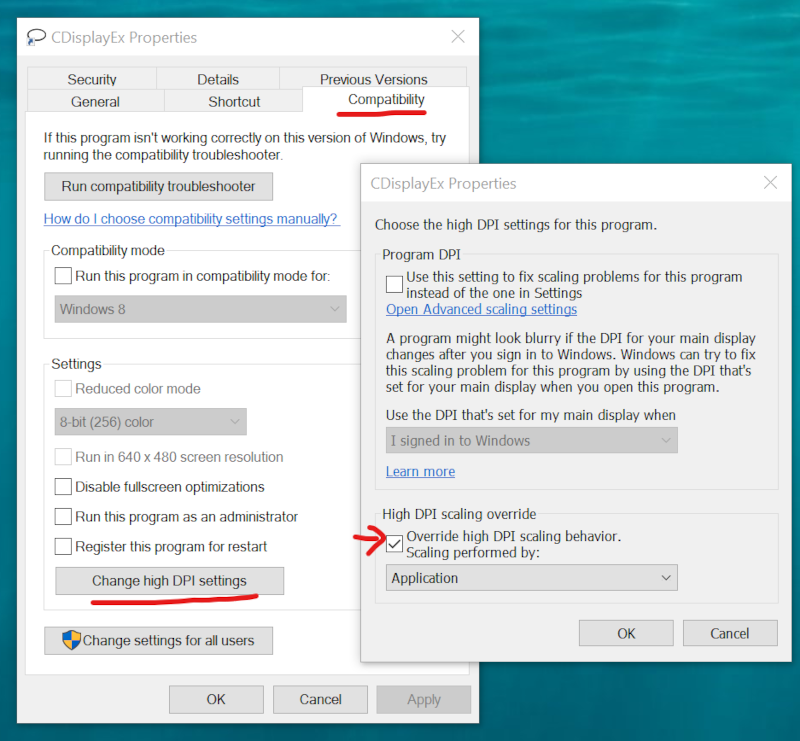
This problem is caused by the fact that you are using an HD display and Windows is applying a compatibility mode to the application. Right-click on the application shortcut and select “Properties”
If you always used CDisplay, you may be confused by CDisplayEx. Here are some tips:
- Set fullscreen mode: press F11 key
- Improve image quality: menu > Options > Resize algorithm > Lanczos
- Go to menu > Options > Configure > General
- Uncheck “Smooth scrolling”
- Uncheck “Show on-screen informations”
- Check “Cache pages”
- Check “small cursor”
- Set “Scrolling attempts before changing page” to 1
- by doing this you will feel like using CDisplay, but faster.
There is an option to control this behaviour, it is located in “Options > Configure > General”. Its name is “Scrolling attempts before changing page”. By default it is set to 0 so it will change page immediately after a scroll, if you set the value to 1 it will not change the page immediately, it will do it the next time. But if you want to deactivate this feature, just set the value to a big number.
- Go to menu > Option > Configure > Keyboard.
- Select item on the left side.
- Focus the edit field.
- Use your keyboard to set the combination.
- Use “«” buttons to assign the shortcut.